Electrical Hazard
Reminder: Any future maintenance or interaction with the internal wiring should only be performed by a qualified electrician. Always ensure the main power breaker is turned OFF before opening the switchboard.
Important Tool Warning
When interacting with the device's reset pinhole, only use standard SIM-ejector tools or a blunt paperclip. Never use sharp or brittle objects (like sewing needles) that may break inside and damage the module.
Daily Operation & Features
The Jasmine Smart ecosystem operates on a two-way synchronization principle, ensuring you always have control, regardless of the method used.
Understanding "State Toggle"
Because our system allows for Dual Control (via app or manual switch), the system registers changes in the physical switch's movement rather than its static up/down orientation.
Flipping the physical switch in either direction will reverse the current state of your connected appliance.
Example: If a light is turned ON remotely via your mobile app, simply toggling the physical wall switch DOWN will turn the light OFF.
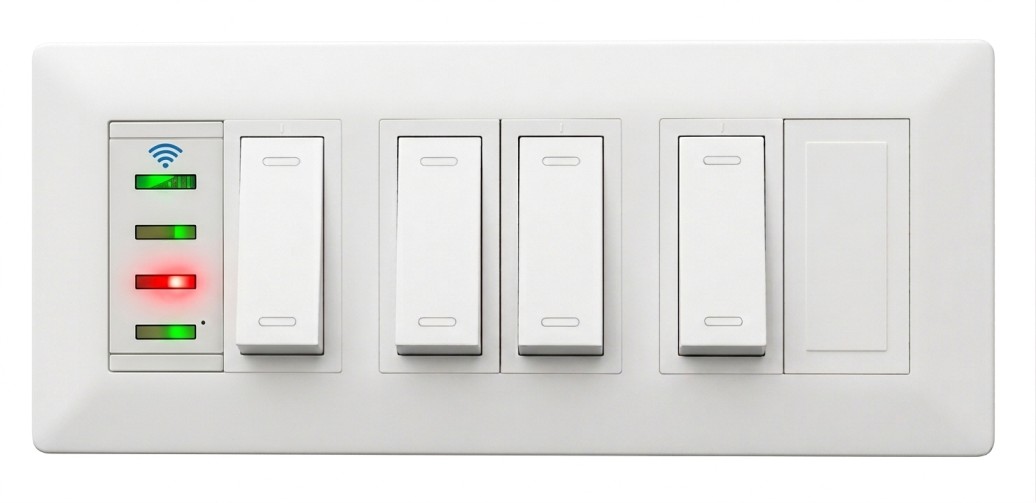
Decoding the LEDs
The wall panel features dedicated LED indicators that provide immediate visual feedback. These represent the absolute true state of the appliance, functioning entirely independently of the physical switch's up/down position.
-
Solid Green: Appliance is ON Power is actively being supplied.
-
Solid Red: Appliance is OFF Power is disconnected from the appliance.
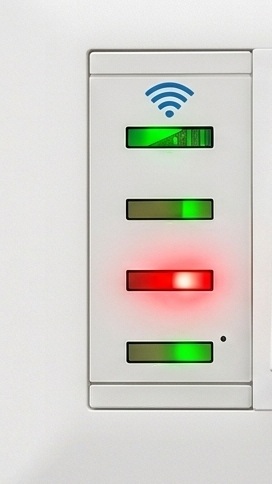
Network Diagnostics (Blue Wi-Fi LED)
The uppermost Blue LED signifies the health of your device's connection to your local network and the internet.
| Blinking Pattern | Diagnostic Status | Recommended Action |
|---|---|---|
| Solid / Off | Normal Operation | System is online and functioning optimally. |
| Slow Blink (1s delay) | Connected, No Internet | Module is connected to router, but lacks internet. Check ISP connection. |
| Fast Blink (0.5s delay) | No Wi-Fi Connection | Cannot reach router. Verify router power, proximity, and credentials. |
| Rapid / High-Speed | System Level Error | Internal fault detected. A device restart is highly recommended. |
Maintenance & Reset Procedures
Should the module experience network disruptions or require reconfiguration for a new environment, a physical reset may be necessary.
Soft Restart
Power CyclePress and hold the internal button firmly for 1 Second, then release.
Factory Reset
Hard ResetPress and hold the internal button continuously for 1 Minute.